Funding Allocation- Custom Fields
Configure Custom Funding Fields (System Administrators)
Edit and reorder existing fields
Enter Funding Allocation Values in Project Builder
Navigate to Funding Allocation
Enter values in Funding Allocation fields for a project
Edit a value of custom fields in Project Builder
Enter values in Funding Allocation fields for a sub-project
Completing a project with mandatory fields
Custom Funding Allocation Fields let you define additional funding data points like Federal Grant, Municipal Budget, or Deferred Maintenance Fund at both project and sub-project levels in Project Builder, so your team can capture organization-specific funding categories information without any issue.
System Administrators configure Custom Funding Fields and their field types once in Project Settings. The fields then appear in the Funding Allocation section of every project and sub-project in Project Builder, where you can enter and save the values. Fields can be made mandatory, which prevents a project from being marked as Complete until a value is filled in.
Configure Custom Funding Fields (System Administrators)
Custom Funding Fields are set up in Project Settings. Changes apply globally to all projects and sub-projects that are in Conceptual and Committed states.
Add a custom funding field
-
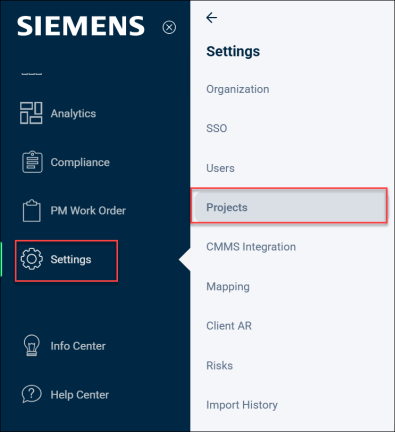
Go to Settings > Project from the side navigation.
-
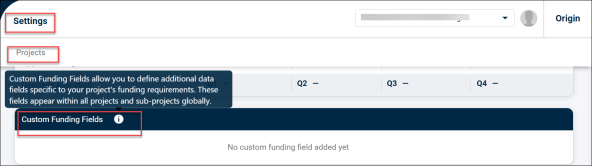
Scroll to the Custom Funding Fields section on the Project Settings Page.
-
Click the page-level Edit button to enter edit mode and manage fields.

-
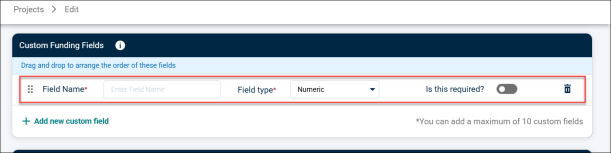
Click + Add new custom field.

A new row appears at the bottom of the list.
-
Enter the following details to add the custom fields:
-
Type a name in the Field Name input.
-
From the Field type dropdown, select Numeric or Percentage (%).
-
Toggle Is this required? to Yes to make the field mandatory for project completion. The default is No.
-
Repeat the steps 1-3 for each additional field (max: 10).
-
Repeat steps 1-3 to add more fields before saving. You can add maximum 10 fields.
-
-
Click Save.

NOTE
- Field names must be unique and cannot exceed 30 characters. Entering more triggers the inline error: "Field name cannot exceed 30 characters."
- You can add up to 10 custom fields. The + Add new custom field button is disabled once 10 fields exist.
- Duplicate field names are blocked. Attempting to save with a duplicate name triggers the inline error: "A field with this name already exists."
- Fields are only saved when you click the page-level Save button, there is no save per individual row.
- Clicking Cancel discards all staged additions.
- The new fields will immediately appear in Project Builder and Sub-Project Builder for all active projects.
Edit and reorder existing fields
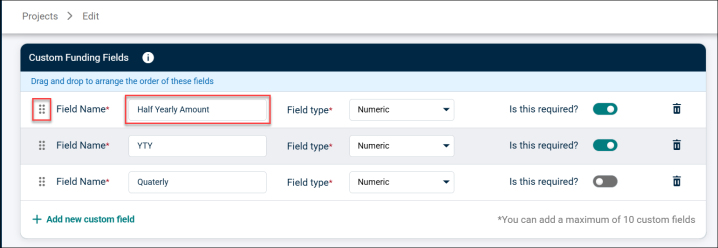
You can edit, rename and change type and status of an existing custom funding fields directly in the table row.
-
Go to Project Settings and scroll to Custom Funding Fields.
-
Click Edit on the page to enter edit mode. Each row becomes interactive.
-
Click into a Field name or Field type to update it, or toggle Is this required? as needed.
-
Drag the handle on the left of any row to reorder the fields.
-
Click Save to apply your changes or Cancel to discard them.
NOTE
- Renaming a field or changing its type updates all active projects immediately. Projects already marked as Completed retain the original field name and configuration at the time of completion.
- Reordering fields changes the display order in Project Builder for all projects.
- Changing Field type from Numeric to Percentage (or vice versa) does not automatically convert existing stored values. You should align field types to the values already entered in active projects before changing.
Delete a custom funding field
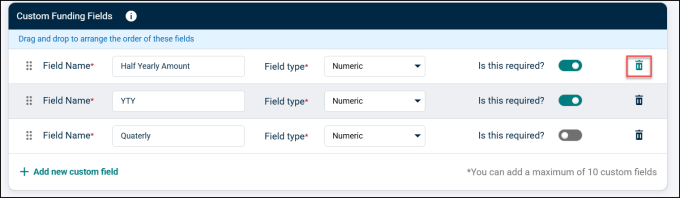
A funding field can be deleted from Project Settings edit mode. A confirmation pop-up explains the impact before the deletion is staged.
-
Go to Project Settings, scroll to Custom Funding Fields, and click Edit.
-
Click the Delete (trash) icon on the row you want to remove.
-
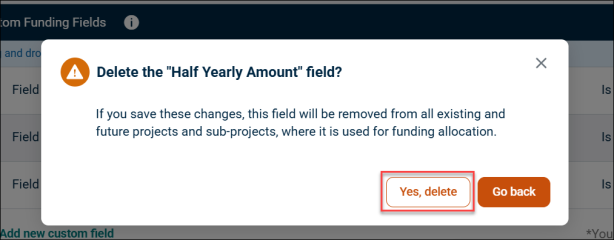
Review the confirmation dialog, If you save these changes, this field will be removed from all existing and future projects and sub-projects where it is used for funding allocation.
-
Click Yes, delete to confirm, or Go back to cancel.
-
Click Save on the Project Settings page to apply these deletion.
What happens to existing data when a field is deleted:
| Project / Sub-Project State | Field Removed? | Entered Values |
| Conceptual | Yes | Lost permanently |
| Committed | Yes |
Lost permanently |
| Completed |
No, stays as read-only |
Preserved (read-only) |
|
Sub-project Completed, Parent project NOT Completed |
No on both parent and sub-project |
Preserved read-only on both |
NOTE
- Deleting Yes on the pop-up marks the row for deletion but does not commit until the page-level Save is clicked.
- Deleting a field permanently removes it and all stored values from Conceptual and Committed projects and sub-projects.
- Projects and sub-projects already marked as Completed retain the deleted field and its value as read-only historical data.
- If a sub-project is Completed but its parent project is not yet Completed, the field is also retained on the parent project until the parent is completed.
Enter Funding Allocation Values in Project Builder
Once Custom Funding Fields are configured, they appear in the Funding Allocation section of every project and sub-project in Project Builder, just above the Budget Source section.
Navigate to Funding Allocation
-
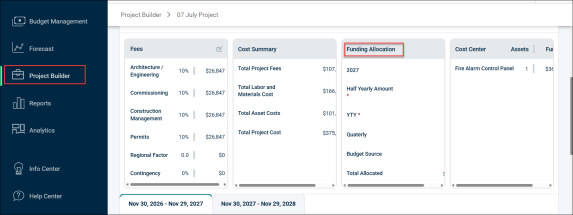
Go to the Project Builder from the side navigation.
-
Scroll down to the Funding Allocation section.
-
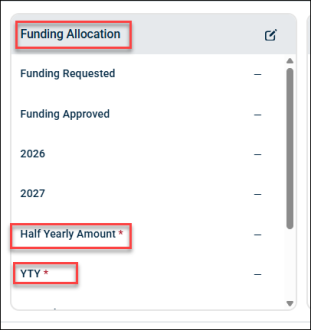
The section displays:
-
Each field by its configured name
-
The field type (Numeric or Percentage)
-
Whether the field is required
-
The current value (if one has been entered), or an empty input if not yet filled
-
NOTE
- If no custom fields have been configured in Project Settings, the section displays: "No custom funding field added yet."
- Fields appear in the same order as configured in Project Settings (including any drag-and-drop reordering).
- On a Completed project, all fields are displayed as read-only, the values cannot be edited after project completion.
- Changes to field names or types in Project Settings are reflected in Project Builder immediately, no data refresh is needed.
Enter values in Funding Allocation fields for a project
You can enter funding values directly into Custom Funding Fields from within Project Builder. Numeric fields accept whole or decimal numbers while the percentage fields accept values between 0 and 100. Values are saved as part of the project record.
-
Open the project in Project Builder.
-
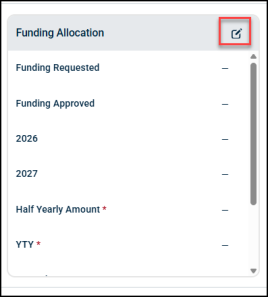
Scroll to the Funding Allocation section and click Edit button.
-
Locate the Custom Funding Fields.
-
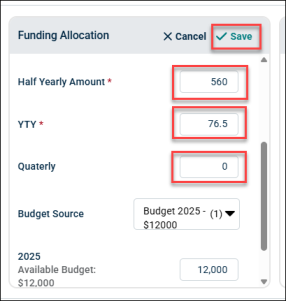
Click into a field and enter a value.
-
Numeric fields accept numbers. Values are automatically rounded to two decimal places on save.
-
Percentage (%) fields accept numbers between 0 and 100. Values are automatically rounded to two decimal places on save.
-
Zero (0) is a valid entry for all fields, including mandatory ones.
-
-
Click Save.
NOTE
- Negative values are not accepted.
- Values on a project are independent of values on its sub-projects, no totals or roll-ups are calculated between levels.
- Custom Funding Fields are not shown on private projects.
- If a field is later deleted from Project Settings and the project is in Conceptual or Committed status, the value is permanently lost. Completed projects retain the value read-only.
Edit a value of custom fields in Project Builder
Any previously entered funding value can be updated directly in Project Builder by clicking the field and entering a new value. The same validation rules apply as when adding a value for the first time.
-
Open the relevant Project in Project Builder.
-
Locate the Custom Funding Fields in Funding Allocation section.
-
Click into the field whose value needs to be changed.
-
Clear the existing value and enter the updated amount.
-
Click Save.
NOTE
- Values on Completed projects are read-only and cannot be edited.
- Clearing a required field to blank blocks project completion until a value is re-entered.
- Sub-project values can also be edited in the same way from within each sub-project in Project Builder
Enter values in Funding Allocation fields for a sub-project
Every sub-project within a Project Builder view contains its own Custom Funding Fields section. The fields display the same Custom Funding Fields as the parent project, in the same order. Each sub-project holds its own independent values.
-
Open a Project in Project Builder.
-
Navigate to any sub-project within the project.
-
Scroll to Funding Allocation and locate the Custom Funding Fields.
-
Enter or update the values for each applicable fields.
-
Click Save.
NOTE
- Values on a sub-project never affect the parent project's values, and vice versa.
- When a custom field is deleted from Project Settings, it is removed from all sub-projects that are not yet Completed. Sub-projects that are already Completed retain the field and its value read-only.
- A sub-project that has been Completed shows all Custom Funding Fields as read-only, even if the parent project is still active.
- Each sub-project must have all mandatory fields filled before it can be marked as Completed.
Completing a project with mandatory fields
When a Custom Funding Field is marked as Is Required = Yes, it acts as a completion gate. You cannot mark a project or sub-project as Complete if any required custom funding field has no value entered.
Completing a Project
-
Open the Project in Project Builder.
-
Ensure all required Custom Funding Fields have values entered.
-
Click the Edit button near Status.

-
Proceed to mark the project as Complete using the standard Origin completion action.
-
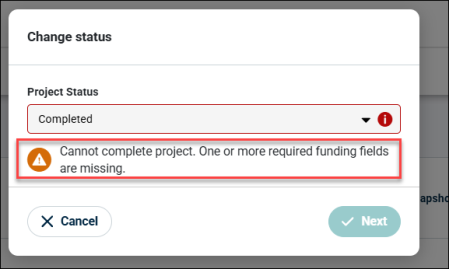
If any required field is empty, the completion action is blocked and an inline error identifies the missing field(s).
-
Enter the missing values and retry the completion action.
Completing a Sub-Project
-
Open the relevant sub-project within Project Builder.
-
Ensure all required Custom Funding Fields have values entered for that sub-project specifically.
-
Mark the sub-project as Complete.
-
Missing required values on the sub-project block its completion independently of the parent project's status.
NOTE
- Mandatory field enforcement applies independently at the project level and at each sub-project level — a parent project with all required fields completed can still be blocked from completing if a sub-project has outstanding required fields.
- A sub-project can be Completed (and its fields locked read-only) while the parent project is still in Conceptual or Committed status.
- When a sub-project is Completed, its Custom Funding Fields become read-only immediately.
- Once a project or sub-project is Completed, previously entered funding values are preserved as a permanent record even if the field definition is later changed or deleted.
